


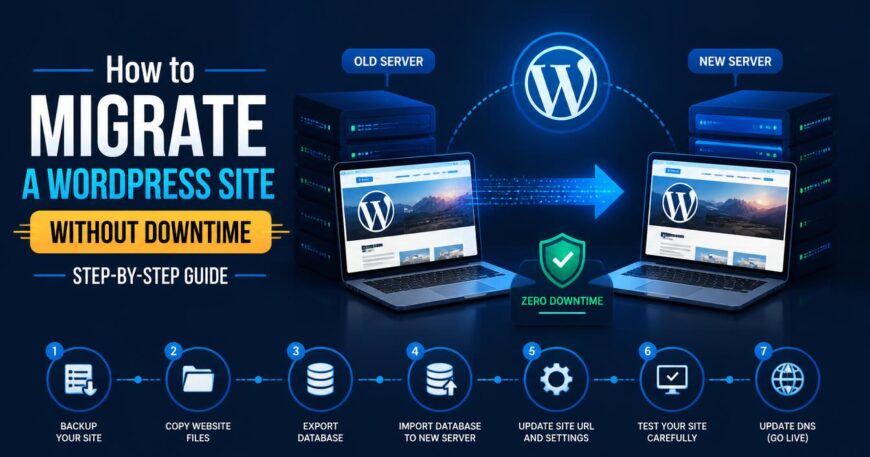
How Do You Migrate a WordPress Site?
To migrate a WordPress site, back up your files and database, then create an empty database on the new host. Next, upload your files, import the database and update the four database settings in wp-config.php. Test the new site privately using your computer’s hosts file, then update your domain’s DNS A record to the new server. Finally, verify SSL, redirects and Google Search Console. Keep the old hosting active for at least seven days as a rollback option.
Knowing how to migrate a WordPress site safely matters because WordPress runs roughly four in ten websites worldwide, according to W3Techs, so hosting moves, rebrands and staging-to-live launches are routine work. They are also where most avoidable ranking losses start. The usual culprits are an unchecked backup, no private test and missing redirects.
This guide follows the order that actually works in practice.
What Is WordPress Migration?
WordPress migration is the process of moving a WordPress website’s files, database and domain settings from one hosting environment to another, or from one domain to another, while keeping its content, functionality and search rankings intact. A host-only move keeps your URLs unchanged. A domain move changes every URL and therefore needs 301 redirects.
What Should You Do Before Migrating a WordPress Site?
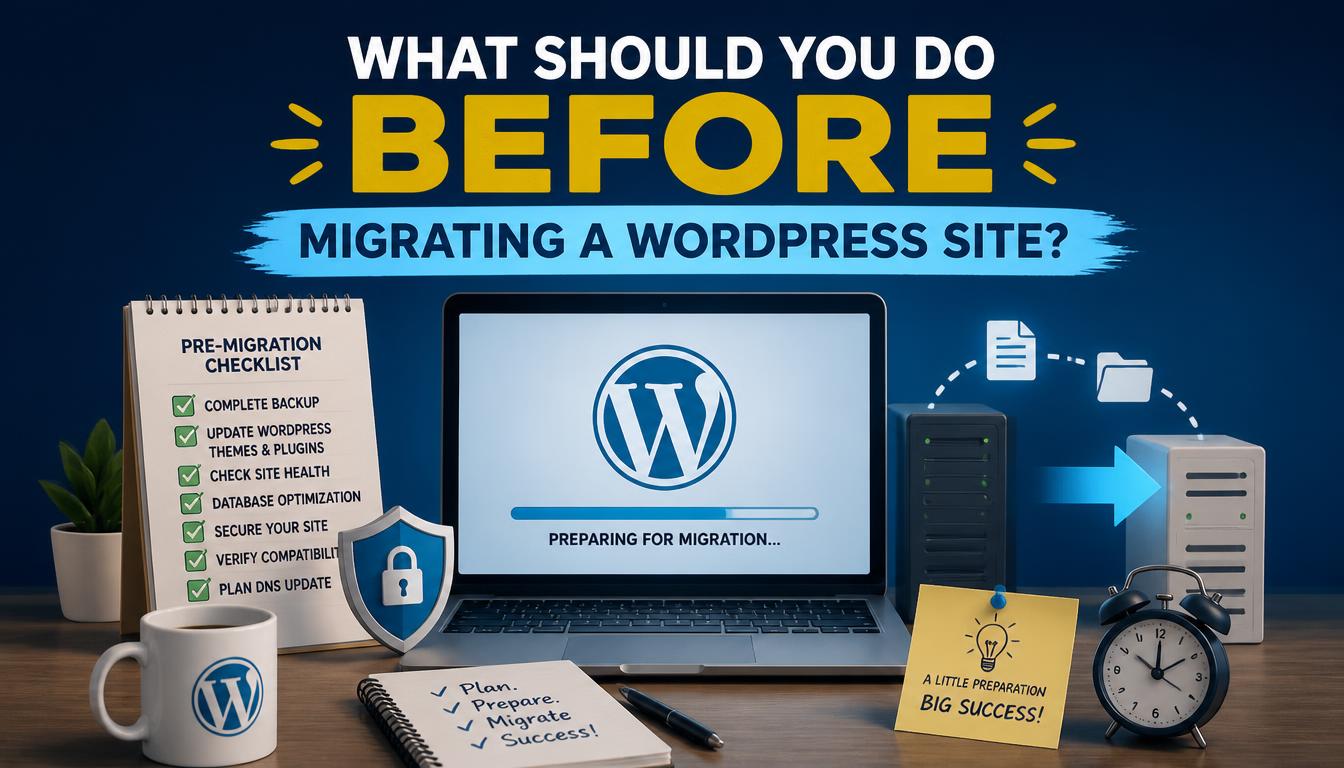
Before migrating, take a full backup, confirm the new host meets WordPress requirements, and lower your DNS TTL to 300 seconds at least 24 hours before the switch. These three actions prevent most failures.
A complete backup has two parts: your files (themes, plugins, uploads) and your database. The WordPress.org guide to backups covers both. Open the backup and confirm the SQL file isn’t empty, because a backup you’ve never inspected is not a backup.
Check the new host against the official WordPress requirements and make sure it runs a currently supported PHP version. For Australian audiences, choose a Sydney or Melbourne data centre, since distance adds latency for local visitors. If you run WooCommerce, also plan a content freeze, because orders placed on the old server during the switch can be lost.
Shops with dozens of extensions are the hardest to move, which is why a well-planned e-commerce website build keeps plugins to a minimum from day one.
Which WordPress Migration Method Is Best?
Migration plugins suit small to medium sites, host-managed moves suit owners who want hands-off help, and manual migration suits large or custom sites.
| Method | Best for | Effort | Main risk |
| Migration plugin (Duplicator, All-in-One WP Migration) | Small to medium sites | Low | Upload and timeout limits |
| Host-managed migration | Owners wanting it done for them | Very low | Nobody checks SEO afterwards |
| Manual migration | Large, custom or WooCommerce sites | High | Configuration typos |
Plugin failures usually trace back to three server settings: upload_max_filesize, max_execution_time and memory_limit. If a plugin migration stalls, raise those values before trying again. The official moving WordPress guide is a reliable reference for every method.
Sites with heavy custom code usually suit the manual method, and a developer experienced in custom website development can handle the file and database steps for you.
How Do You Migrate a WordPress Site Manually?
A manual migration takes seven steps: export the database, copy the files, create a new database, upload and import, edit wp-config.php, fix URLs if needed, and re-save permalinks.
Step 1: Export the database
In phpMyAdmin on the old host, select your WordPress database and export it as an SQL file using the Quick method.
Step 2: Copy your files
Download the entire WordPress folder over SFTP. The wp-content directory holds your themes, plugins and uploads. Also confirm you’ve copied .htaccess, because it’s a hidden file that many FTP clients skip by default, and missing it causes site-wide 404 errors later. With SSH access, zip the folder first, as one archive transfers faster than thousands of small files.
Step 3: Create the new database
In the new host’s control panel, create an empty database and a user with full privileges. Record the name, username, password and host.
Step 4: Upload and import
Upload the files to the new server’s root folder, then import the SQL file through phpMyAdmin’s Import tab. If the file exceeds the upload limit, ask the host to raise it rather than splitting the file manually.
Step 5: Edit wp-config.php
Update DB_NAME, DB_USER, DB_PASSWORD and DB_HOST with the new values. A single wrong character produces “Error establishing a database connection”.
Step 6: Fix URLs if the domain is changing
If the domain stays the same, skip this step. If it changes, use WP-CLI’s search-replace command (see the WP-CLI documentation) rather than a plain database find-and-replace. WordPress stores serialised data with character counts, so a naive replace corrupts widgets and theme settings. Always run a dry run first:
wp search-replace ‘https://old-site.com’ ‘https://new-site.com’ –skip-columns=guid –dry-run
The –skip-columns=guid flag leaves post GUIDs untouched, as WordPress intends. Remove –dry-run once the preview looks right.
Step 7: Re-save permalinks
Go to Settings, then Permalinks, and click Save Changes without altering anything. This regenerates the rewrite rules.
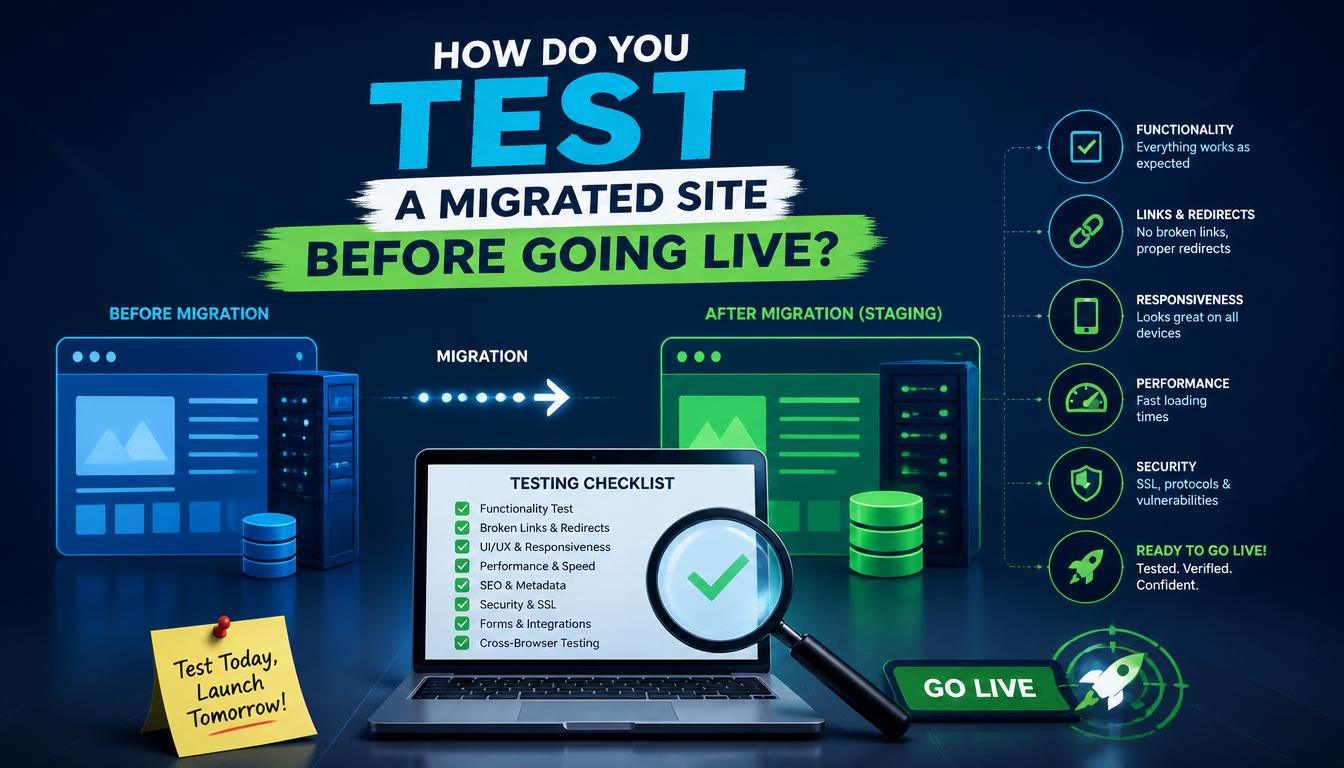
Test the migrated site by adding a line to your computer’s hosts file that maps your domain to the new server’s IP address. Only your device sees the new site, and everyone else still sees the old one.
The file lives at C:\Windows\System32\drivers\etc\hosts on Windows and /etc/hosts on Mac and Linux. With the entry active, test the homepage, top landing pages, forms, login and checkout. Check mobile layouts and look for the padlock on every page, since one hard-coded HTTP image triggers a mixed-content warning. Remove the hosts entry when you finish.
How Do You Switch DNS Without Downtime?
Update the A record for your domain to the new server’s IP address, or change nameservers if the new host manages your DNS. With a 300-second TTL, most visitors reach the new server within minutes. Full global propagation can still take up to 48 hours.
Choose a quiet window, such as Sunday evening AEST. Before switching, check your MX records if email runs through the old host, because a careless DNS change can interrupt email delivery. After the switch, purge your caching plugin and any CDN so visitors don’t receive stale pages.
How Do You Protect Your SEO When Migrating WordPress?
Keep URLs identical where possible, and add 301 redirects from every old URL to its new equivalent wherever they change. Google’s guidance on site moves with URL changes recommends keeping those redirects in place for at least a year.
Run these checks on launch day:
- Confirm “Discourage search engines from indexing this site” is off under Settings, then Reading.
- Check that robots.txt didn’t copy a “disallow all” rule from staging.
- Submit your XML sitemap in Google Search Console.
- Use the Change of Address tool only if the domain itself changed. A host-only move doesn’t need it.
- Monitor traffic and rankings daily for two weeks.
What Goes Wrong During WordPress Migration, and How Do You Fix It?
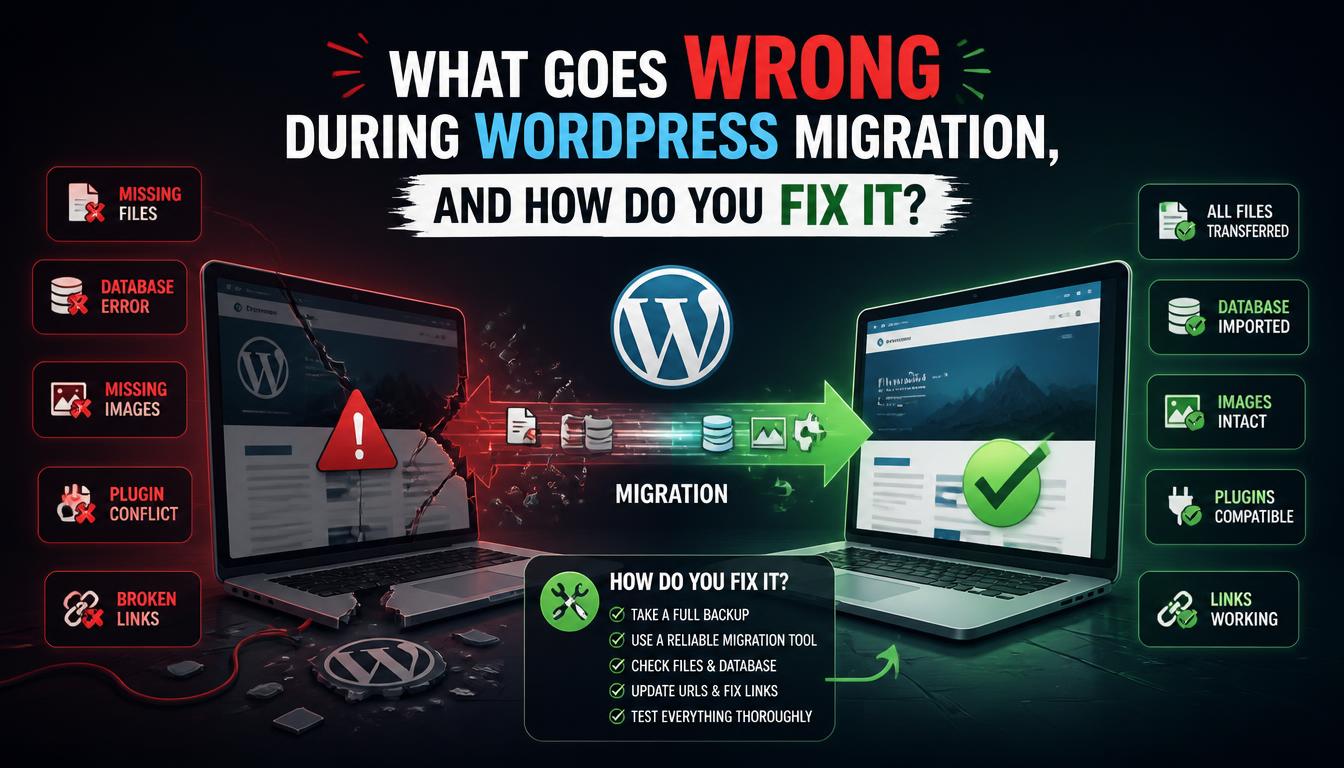
Most post-migration problems fall into six patterns, each with a quick diagnosis.
| Symptom | Likely cause | Fix |
| “Error establishing a database connection” | Wrong credentials in wp-config.php | Recheck the four DB constants and user privileges |
| White screen or 500 error | PHP version mismatch or a broken plugin | Enable WP_DEBUG, then rename the plugins folder to isolate the culprit |
| Missing images or broken layout | Old URLs in the database or incomplete upload | Re-run search-replace and re-upload wp-content |
| 404 on every page except the homepage | Missing .htaccess or rewrite rules | Upload .htaccess and re-save permalinks |
| No padlock (mixed content) | HTTP links stored in the database | Replace http:// with https:// via WP-CLI |
| Redirect loop | Conflicting HTTPS or CDN settings | Check the siteurl and home values in the database |
When Should You Hire a Professional?
Hire a professional when the site generates revenue or the migration involves a domain change. Online stores, membership sites and custom-coded builds carry orders, accounts and data that can’t afford errors. Many owners work with a team offering web design Sydney businesses rely on, because that team understands both the technical and the SEO side of a move.
A migration is also a sensible moment to review the design. If the layout is dated or slow, rebuilding during the move can cost little more than the move alone. Reputable Website Design Australia providers can preserve existing content and rankings while improving speed and structure.
If you decide to rebuild instead of simply moving, compare the available website packages so you know exactly what’s included.
What Should You Do After the Migration?
After migrating, monitor uptime and page speed for two weeks, confirm scheduled backups run on the new server, and keep WordPress core, themes and plugins updated. Outdated plugins are a common entry point for hacked sites. If you’d rather not handle this yourself, Website Maintenance Services can take care of updates, security scans and backups on a schedule.
Summary
Learning how to migrate a WordPress site comes down to sequence: prepare, back up, move, test, switch and monitor. Never rush the DNS change, and never delete the old site until the new one has proven itself over at least seven days.
Frequently Asked Questions
How long does it take to migrate a WordPress site?
A small site takes one to two hours. A large site or online store can take a full day, plus up to 48 hours for DNS propagation. Setting the TTL to 300 seconds a day beforehand shortens the final switch considerably.
Will migrating my WordPress site hurt my SEO?
Not if it’s done correctly. Keep URLs unchanged, add 301 redirects wherever they change, and submit your sitemap in Google Search Console. Small, temporary ranking fluctuations during the first two weeks are normal.
Can I migrate a WordPress site without a plugin?
Yes. Download the files over SFTP, export and import the database with phpMyAdmin, and update wp-config.php manually. This takes longer than a plugin but avoids upload size limits and gives you full control.
How do I migrate WordPress with zero downtime?
Build and test the new site on the new server first using a hosts file preview. Update DNS only when testing passes. The old site stays live until the switch, so visitors never see an offline page.
Do I need a new domain when I change hosts?
No. You can keep your existing domain and point it to the new server. URL replacement and 301 redirects are only required when moving to a different domain name.
Why do I get a database error after migrating?
The database name, username, password or host in wp-config.php almost always differs from the new database. Re-check each value and confirm the database user has full privileges on that database.

