


What Is the Error Establishing a Database Connection in WordPress?
The Error Establishing a Database Connection message in WordPress means your site can’t connect to its MySQL database. The most common causes are wrong login details in wp-config.php, a down or overloaded database server, corrupted database tables and damaged WordPress core files. To fix it, check your wp-config.php credentials, repair the database and replace the core files.
Introduction
Picture a customer in Brisbane tapping your link to book a quote and landing on a bare white page that says “Error establishing a database connection.” No logo, no menu, no phone number. They hit the back button and ring your competitor instead.
That’s why this error stings. If your website brings in enquiries, bookings or online orders, every minute offline costs you money. Search engines notice too. The error normally returns a server error status, so if pages keep failing for days, Google may start dropping them from its results.
Here’s the reassuring part. Your pages, posts and products are almost always still safe in the database, and WordPress just can’t reach them right now. This guide explains what the message means, what triggers it and how to fix it step by step, starting with the quickest checks. Whether you hired a team for web design businesses to rely on, or built the site yourself over a long weekend, the troubleshooting steps are the same.
What Is the WordPress Database Connection Error?
A WordPress site is really two things working together. The files (WordPress core, your theme and your plugins) sit in a folder on your web server. Everything you’ve written or set up, such as pages, blog posts, product listings, menus, user accounts and settings, lives in a MySQL or MariaDB database.
Each time somebody opens a page, WordPress asks the database for the right content and builds the page on the spot. If that request fails, WordPress has nothing to build with, so it stops and shows this message instead.
Picture a restaurant where the waiter can’t get through to the kitchen. The dining room is open, the tables are set and the menus are printed, but no meals can come out. Your site’s design and files are fine. The data behind them is out of reach.
The message does not mean your content has been deleted. Sometimes it shows on the public site and in the dashboard. Other times your dashboard displays a slightly different warning, saying one or more database tables are unavailable or need repair. That second version usually points to damaged tables rather than a failed login, which is a handy clue.
Common Causes of the WordPress Database Connection Error
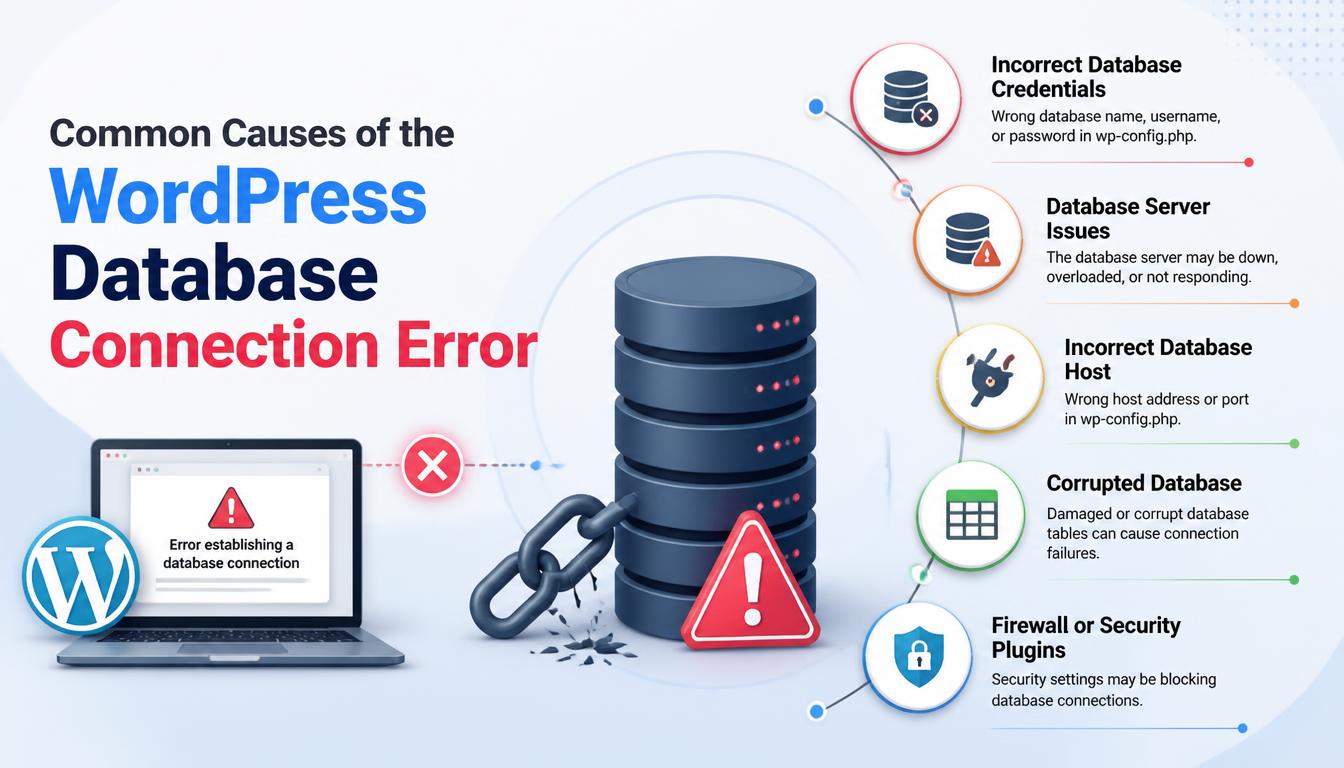
Several different problems end with the same message, which is why it feels so vague. Knowing the likely cause saves you from changing settings that were never the problem.
1. Incorrect Database Login Details
WordPress connects using four values stored in wp-config.php: the database name, the username, the password and the host. If any one of them is wrong, the connection fails. This often happens after a site migration, after your host resets a password, or when someone edits the file and leaves a stray space behind.
2. A Database Server That’s Down or Overloaded
Your database runs on a server, and servers have bad days. On shared hosting, a traffic spike on a neighbouring site can eat up resources, or your host may be doing maintenance. If the error comes and goes, or shows up during busy periods, the server is the likely culprit.
3. Corrupted Database Tables
Tables can get damaged when a server crashes mid-write, a plugin update fails halfway or disk space runs out. WordPress has a built-in repair tool for exactly this.
4. Corrupted or Missing Core Files
An interrupted update or a bad file upload can leave WordPress core files incomplete. A hacked site may also have altered files. Either way, WordPress can’t start up properly.
5. Hosting Resource Limits
Cheaper plans cap memory, processing power and the number of database connections. A busy sale weekend, a heavy plugin or a badly built query can push a small plan past its limit.
6. Recent Updates, Migrations or Plugin Changes
A badly coded plugin can hammer the database with heavy queries or interfere with the connection. If the problem began right after you installed, updated or moved something, treat that as a strong clue.
7. Hacking or Malware
Attackers sometimes change database settings or wipe files. If you haven’t touched wp-config.php and the details suddenly look wrong, take security seriously and scan the site.
How to Fix the Error Establishing a Database Connection in WordPress
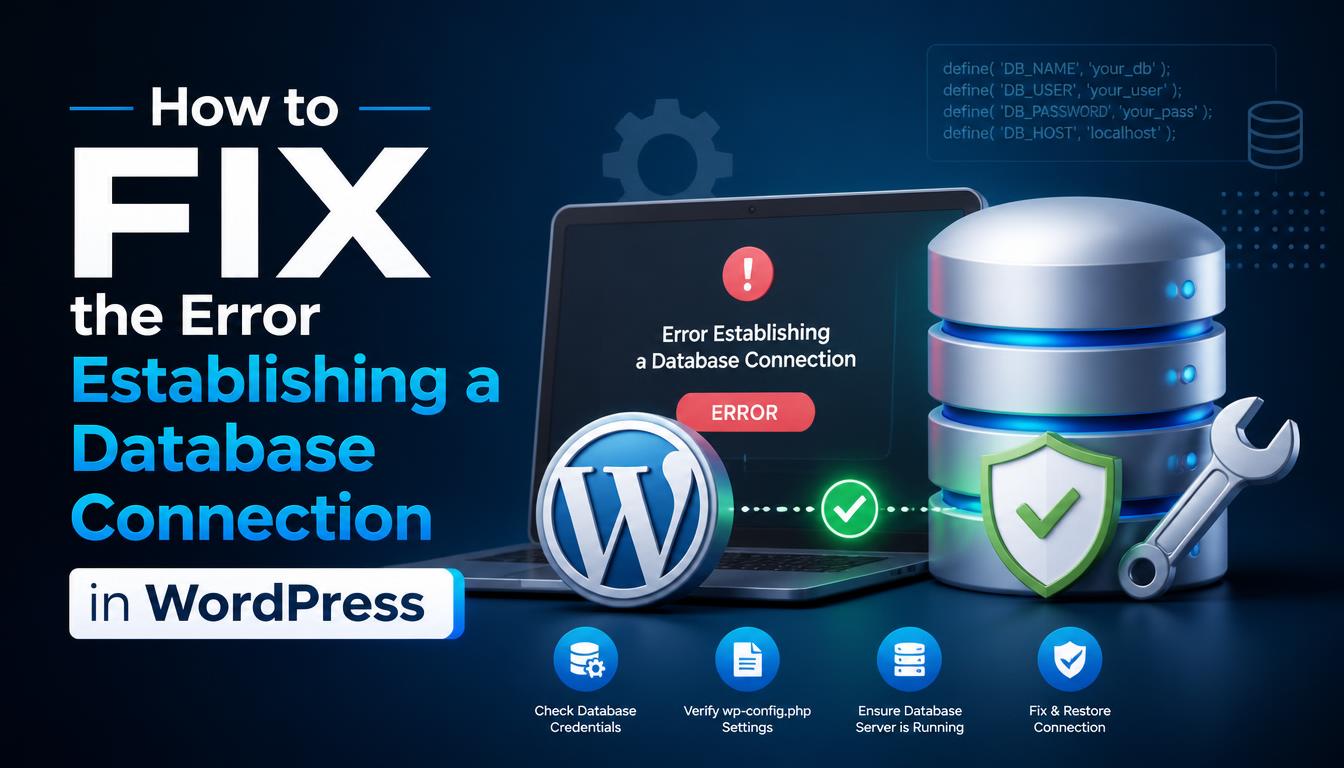
Work through these steps in order and stop as soon as the site comes back.
Step 1: Rule Out a Hosting or Server Problem
Reload the page after a few minutes, because short server blips often fix themselves. Then check whether other sites on the same hosting account are down. If they are, the problem sits with your host, not WordPress. It also helps to visit yoursite.com.au/wp-admin, since a different message there, such as a repair prompt, points to damaged tables.
Log in to your hosting panel, look for service notices and contact support. Ask three things: is the MySQL service running, has the account hit any resource limits, and have there been recent outages?
Here’s an Australian wrinkle. Some hosts are based overseas, and a 9 am outage in Sydney can land in the middle of their night. If you’ve been waiting on a slow support queue, that’s one more reason to review your hosting later.
Tip: Think about what changed last, such as a plugin update, a migration or a password change. If you can still reach your files and database, take a backup before you touch anything.
Step 2: Check the Database Details in wp-config.php
Open your hosting File Manager (or connect with FTP) and find wp-config.php in your site’s root folder, often called public_html. If you haven’t edited this file before, InMotion Hosting’s walkthrough shows where it lives in cPanel, and the official WordPress Codex page on wp-config.php explains each setting.
Look for these four lines:
define( ‘DB_NAME’, ‘your_database_name’ );
define( ‘DB_USER’, ‘your_database_user’ );
define( ‘DB_PASSWORD’, ‘your_password’ );
define( ‘DB_HOST’, ‘localhost’ );
Compare each value with what your hosting panel shows under MySQL Databases. Names often carry a prefix and they’re case-sensitive. DB_HOST is “localhost” on many hosts but not all, so check your host’s documentation if you’re unsure. Also look for a stray space or a missing quote.
Here’s a reliable test. Log in to phpMyAdmin using the same username and password. If it rejects them, the password is wrong. Reset it in your hosting panel, then update wp-config.php to match.
Step 3: Confirm the Database and User Permissions
In MySQL Databases, make sure your database is listed and that the database user is assigned to it with all privileges. A user who exists but isn’t linked to the database gets locked out, and WordPress shows exactly the same error.
Step 4: Repair the Database
If you suspect damaged tables, use the repair tool built into WordPress. Open wp-config.php and add this line above the comment that says “That’s all, stop editing!”
define( ‘WP_ALLOW_REPAIR’, true );
Then visit yoursite.com.au/wp-admin/maint/repair.php and click Repair Database. When it finishes, go back and delete that line from wp-config.php. This part matters, because while the line is there the repair page can be opened by anyone without logging in.
Step 5: Test Your Plugins and Theme
Using FTP or File Manager, rename the wp-content/plugins folder to something like plugins-old and reload your site. If it loads, rename the folder back and switch plugins on one at a time to find the troublemaker. You can do the same with your active theme folder, and WordPress will switch to a default theme if one is installed.
Step 6: Replace the WordPress Core Files
Download a fresh copy from WordPress.org, unzip it and upload the wp-admin and wp-includes folders to your server, overwriting the old ones. Leave the wp-content folder and your wp-config.php file alone, because those hold your uploads, themes, plugins and settings.
Step 7: Restore a Clean Backup
If the problem started after a specific change, or after moving to a new host, and nothing else has worked, restore the most recent backup from before it. Restore the files and the database from the same point in time, otherwise they won’t match. Don’t overwrite a newer database with an older one until you’re sure you won’t lose recent orders or enquiries. If you spot unexpected admin users, strange files or edited settings, run a malware scan before and after the restore.
Prefer a visual walkthrough with screenshots? This WPExplorer guide covers the same ground.
How to Stop the Database Connection Error Coming Back
You can’t rule out every server hiccup, but you can make this error rare and short-lived.
- Automate your backups. Daily backups stored away from your hosting server mean a bad day costs you hours, not weeks. The Australian Cyber Security Centre at cyber.gov.au advises keeping backups separate from your everyday systems and testing them regularly. A backup you’ve never restored is a hope, not a plan.
- Update with care. Keep WordPress, themes and plugins current, but test big updates on a staging copy first. Failed updates are a classic trigger for this error.
- Trim your plugins. Every plugin is extra code asking the database for something. Delete the ones you don’t use.
- Pick hosting that suits your traffic. Good Website Design Australia projects don’t stop at looks. They also plan for clean code, a lean plugin list and a hosting plan that can handle your visitors. Check the support hours too, and whether help is on hand during Australian business hours.
- Monitor your uptime. Free monitoring tools can email or text you the moment your site stops responding, so you hear about a problem before your customers do.
- Get ongoing help. If you’d rather not be the person fixing things at 7 am, Website Maintenance Services take updates, backups, uptime checks and security scans off your plate, so small issues get handled before they turn into outages.
When Should You Call a WordPress Professional?
A wrong password or a short host outage you can often sort out yourself. Other problems need an expert. It’s time to get help if:
- The site is still offline after you’ve checked the login details and permissions.
- Database tables look corrupted or missing.
- The error keeps coming back for no obvious reason.
- You suspect a failed migration, a hack or a server configuration fault.
- Your online shop can’t take orders or reach customer records.
Systronic IT Group builds and looks after WordPress websites for Australian businesses, and a developer can read your server logs, check database performance and rebuild from a clean backup far faster than guesswork. If you’re planning a rebuild, have a look at their web development in Sydney and website packages.
Also Read: Why a website needs regular updates and support
Conclusion
The error establishing a database connection message sounds technical, but the logic is simple: WordPress can’t reach its data. Check your login details first, then the database and the server. Repair the tables if needed, then rule out core files, plugins and malware.
Most sites are back online well within the hour once the real cause is found. Add automatic backups, careful updates and decent hosting, and you’ll have a much better chance of this being the first and last time your customers see that blank white page.
Frequently Asked Questions
What causes the “error establishing a database connection” message in WordPress?
It means WordPress couldn’t talk to its database. The usual reasons are wrong login details in wp-config.php, a database server that’s down or overloaded, damaged tables, or broken core files. Start with wp-config.php, because incorrect credentials are the most common culprit.
Is my website data safe when this error appears?
Usually, yes. Your posts, pages and settings stay stored in the database, and the error only means WordPress can’t reach them right now. Data loss becomes a risk only if the database itself is deleted or the server fails badly, which is exactly why off-server backups matter.
How do I fix this error if I can’t log in to wp-admin?
You don’t need the dashboard. Use your hosting File Manager or FTP to edit wp-config.php, rename the plugins folder, or replace the core files. You can also run the built-in repair tool by adding one line to wp-config.php and opening the repair page in your browser.
Could one faulty plugin or theme take my whole site offline?
Yes, though it’s less common than bad credentials or server problems. A faulty update or a plugin that runs heavy queries can disrupt the connection. To test it, rename the plugins folder through FTP and reload your site. If the site returns, reactivate plugins one by one.
How long does it take to fix the error?
It depends on the cause. Correcting a wrong password in wp-config.php can take minutes. A server-side outage is out of your hands until the host fixes it, and a hacked or badly corrupted database can take several hours to clean up and restore.
Does a database connection error hurt my Google rankings?
A brief outage is unlikely to cause lasting harm. Ongoing errors are different, because Google may drop pages it can’t load repeatedly. Fix the problem quickly, then check Google Search Console for crawl errors so you can confirm Google can reach your pages again.
Why does the error keep appearing and disappearing?
An on-and-off error usually points to an overloaded server or a resource limit being hit during busy periods. Ask your host to check CPU, memory and database connection limits. If it keeps happening, it may be time to move to a plan with more resources.

